

How to Use the Starlink App: Guide to Settings, Features, and Setup


Andreas Rivera
Mar 05, 2026
Icon Time To Read3 min read

The Starlink app isn’t just a "nice-to-have" accessory; it’s the brain of your satellite internet system. Whether you’re setting up a new Gen 3 Standard dish or managing a Starlink Mini on a remote mountain pass, the app is your primary tool for configuration, troubleshooting, and performance monitoring.

With the major 2026.01.0 update, SpaceX overhauled the interface to be snappier and more intuitive, though some long-time users might find a few familiar settings have moved. Here is everything you need to know to get the most out of the Starlink app in 2026.
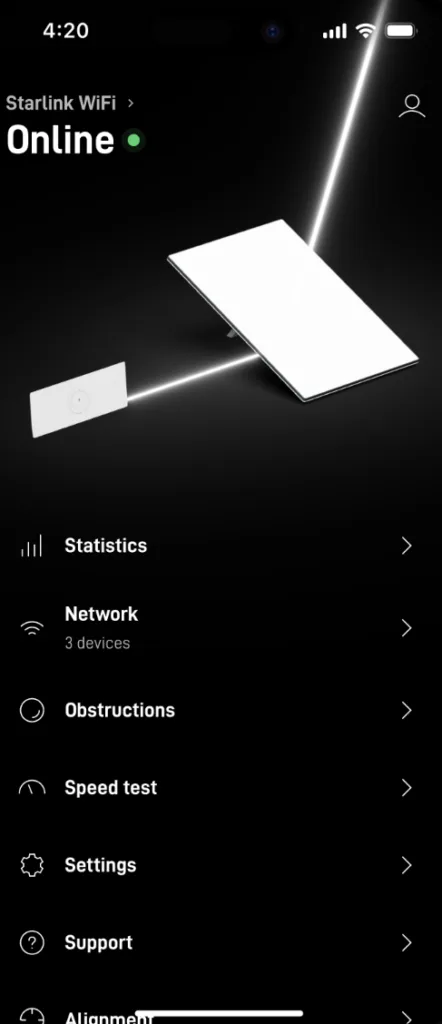
What’s New in the 2026 Starlink App?

Image by Starlink

If you haven't opened the app lately, things look a little different. The 2026 update introduced a cleaner logo and a streamlined navigation menu.

  • Snappier UI: Page load times for "Statistics" and "Obstructions" are significantly faster.

  • Relocated Debug Data: For the tech-savvy, "Debug Data" has moved. Tap the "==" menu button, then look for the "i" icon in the bottom right.

  • Subscription Management: You can now toggle between "Residential," "Roam," and the new "Standby Mode" directly from the home screen.

Core Features You Need to Know

The Obstruction Tool (The Make-or-Break Feature)

Obstructions are the #1 cause of service drops. The app’s obstruction tool uses your phone’s camera and AR (Augmented Reality) to scan the sky before you even mount your dish.

  • Pro Tip: Don’t just look for trees. Power lines and roof eaves can cause "micro-interruptions" that ruin a Zoom call or gaming session. Aim for 0% obstructions for the best experience.

Speed Test

The app offers two types of speed tests:

  • Standard Test: Measures the speed from the internet to your device.

  • Advanced Test: Measures the speed from the Starlink satellites to your router and from your router to your device. If your "Router to Device" speed is low but "Satellite to Router" is high, the problem is your home Wi-Fi signal, not the Starlink service. This is your cue to consider a Starlink Mesh network.

Statistics and Performance Monitoring

The Statistics screen allows you to check your Starlink's uptime, latency, and power draw. Uptime checks for service disruptions, latency is important for those who need a responsive connection for gaming or HD streaming, and power draw is essential for RVers and off-griders who need to monitor battery life.

This data is essential for fixing problems with your Starlink connection. 

Advanced Settings

Bypass Mode

If you want to use a high-end third-party router (like a TP-Link or ASUS) instead of the included Starlink router, you must enable Bypass Mode. This turns off the Starlink Wi-Fi signal so it doesn’t interfere with your own equipment.

  • Note: On Gen 2 systems, you’ll need the Starlink Ethernet Adapter to use this.

Snow Melt & Heating

Living in a northern climate? You can set your dish to "Automatic" or "Always On" for the heating element. It’s powerful enough to melt heavy sleet and snow, but it does use more electricity.

Ocean Mode & Standby Mode

  • Ocean Mode: Formerly "Global Priority Data," this is for boaters traveling more than 12 nautical miles offshore. You can toggle this on/off to pay for high-priority data by the gigabyte.

  • Standby Mode: Replaced the old "Pause" feature. For $5/month, you can keep your service "active" at very low speeds (0.5 Mbps). It’s perfect for emergency messaging and allows you to instantly reactivate your full plan without needing a separate internet connection.

Common problems with the Starlink app (and how to fix them)

The Starlink app is unable to load account information

Issue
Solution
Unable to load account infoThis is usually a sync error. Log out and log back in, or force-close the app.
App is laggy or unresponsiveCheck for a firmware update. In late 2025, many dishes required a "Sideload" update to remain compatible with the 2026 network.
Dish shows "Offline"Check the cable connections at both the dish and the router.

FAQ about Starlink and the Starlink app

Do I need the app to use Starlink?

You need it for the initial setup to name your Wi-Fi and align the dish. After that, your internet will work without it, but you'll lose the ability to monitor outages or change billing plans on the fly.

Can I manage my Starlink from away from home?

Yes. As long as you are logged into your account, you can check your home’s connection status and reboot your router from anywhere in the world with cell service.

How do I update the app?

The app updates through the Apple App Store or Google Play Store. However, the dish firmware updates automatically overnight (usually around 3:00 AM) when the dish is plugged in and has a clear view of the sky.

Andreas Rivera
Written by
Andreas Rivera is a lifelong writer with a decade-spanning career in journalism and marketing. He comes to SatelliteInternet.com with several years of experience writing about business and technology. His passion for researching the latest advancements in tech, especially the now essential need for reliable internet access, fuels his goal of educating others about how these innovations affect and improve our everyday lives. When not researching and writing about SatelliteInternet.com, you’ll likely find him buried in a good book or enjoying the great outdoors with a fishing rod.
